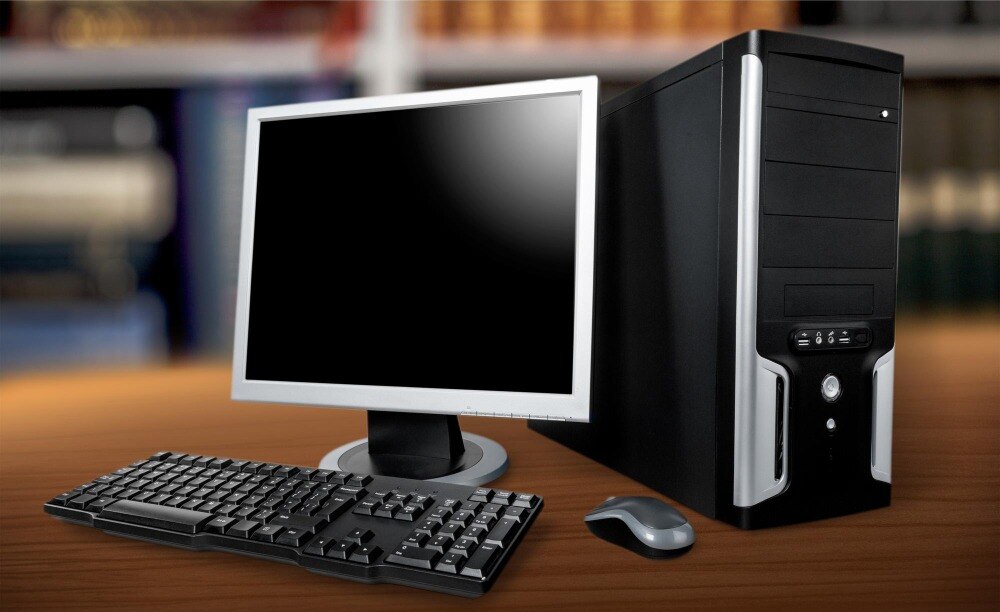
A rented desktop stays reliable when you control heat, dust, power, updates and storage before they become faults. You will learn how to check the machine at handover, match its specifications to your workload, isolate common failures and give support enough evidence to resolve a problem quickly.
Key takeaways
- Record the processor model, RAM, storage, Windows edition and serial numbers at handover.
- Restart weekly, keep ventilation clear and leave at least 20% storage space free.
- Match RAM and storage to your workload instead of relying on the i5 label alone.
- Send support the asset tag, symptoms, error text and recent changes.
Record the machine’s real specifications at handover
Before you power on an Intel i5 desktop rental, record the asset tag, chassis serial number, exact processor model, RAM capacity, storage type and capacity, Windows edition, and monitor serial number. “Intel Core i5” is not enough: an i5-6500 and an i5-12400 differ in generation, cores, graphics and performance.
This record prevents disputes over missing or substituted components.
- Match each number with the equipment in front of you. Check the desktop’s asset tag and serial number in Windows System Information or the BIOS, then confirm the monitor serial number on its rear label.
- Verify the processor model, installed RAM, SSD or hard-disk capacity, Windows 10 or Windows 11 edition, and available ports. Photograph the specification screen and the cable connections.
- Start the desktop, display, keyboard, mouse, network connection and required USB devices. Test every port you need before accepting the unit; a faulty port can look like a peripheral failure later.
- For an Intel i5 desktop rental for maintenance in Delhi, record the support channel, service hours, first-response target, replacement turnaround and whether a replacement matches the Windows edition, ports and performance level.
Do not install a generic Intel graphics, chipset or network driver first. Ask for the desktop manufacturer’s or rental provider’s approved driver, create a restore point, and record the existing driver version before changing anything.
Use a daily and weekly routine to prevent avoidable faults
Keep the desktop cool and stable by making a short check part of every workday, not waiting for a fault. Leave space around the case, never cover its vents, and place it on a hard surface rather than carpet. A hot case, fan noise or performance that drops after several minutes can indicate thermal throttling.
- Check that the power, monitor, network, USB and printer cables are firmly seated and not sharply bent.
- Wipe dust from external vents with the desktop powered off; do not spray liquid into the case.
- Close unnecessary programs and restart after Windows installs updates, rather than leaving the machine in sleep mode for weeks.
- Save working files to your organisation’s backed-up location instead of relying on the rented desktop’s internal drive.
Once a week, power down and unplug the desktop before cleaning dust from accessible vents and checking that the fans are unobstructed. Do not open the power-supply enclosure or replace internal parts without written permission; stored voltage can remain hazardous, and unauthorised changes can create a rental dispute.
- Run Windows Update and restart when prompted, but obtain graphics, chipset and network drivers from the desktop manufacturer or rental provider first.
- Check free space in File Explorer and remove temporary files through Settings, System, Storage.
- Inspect the power strip for heat, damage or loose sockets.
- Record unusual freezes, blue screens, failed boots, USB faults or network drops with the date and time.
Create a restore point or note the previous driver version before any driver change. A clean, cool case and documented routine make support faster when a fault does occur.
Match RAM, storage and Windows to the work
Smooth operation depends on the exact Core i5 model, RAM, storage drive, Windows edition and graphics hardware—not the “i5” label alone. An i5-6500 and an i5-12400 differ in generation, cores, integrated graphics and power limits, so record the full model before accepting the desktop.
| Specification | Suitable choice | What can go wrong |
|---|---|---|
| Processor | Match the generation and core count to your software; office work needs less than video editing or 3D applications. | An older i5 can struggle even when its name sounds powerful. |
| RAM | 8 GB handles basic office work; 16 GB gives more room for browsers, meetings and large spreadsheets. | With 4 GB, Windows may rely heavily on storage and feel slow. |
| Storage | Choose an SSD for Windows, applications and quick file access; use an HDD mainly for low-cost bulk storage. | An HDD can make booting, updates and program launches feel sluggish. |
| Windows | Use a supported 64-bit edition that matches your applications. | Windows 11 needs a compatible processor, 4 GB RAM, 64 GB storage, UEFI Secure Boot and TPM 2.0; an older i5 does not guarantee eligibility. |
| Graphics | Check integrated or dedicated graphics and the required display connectors. | A display problem can result from incompatible outputs, not a failed processor. |
Leave free storage for Windows updates and temporary files. If performance starts normally and drops after several minutes, check temperature and clock speed: thermal throttling reduces processor speed to control heat. Unexpected restarts or corrupted files call for storage-health and memory checks, not simply a Windows reset.
Troubleshoot the symptom before blaming the desktop
A fault that follows a monitor, cable, network port or user account is not proof that the desktop has failed. Test one known-good component at a time, then record whether the problem stays with the machine or follows the swapped component.
- For slowness or freezing, open Task Manager and check CPU, memory and disk usage. Try the same task in another Windows account; if only one account is slow, investigate startup apps, profile corruption or software.
- For crashes or blue screens, photograph the stop code, note the exact time, and check whether the crash returns after removing recently installed software or hardware. Do not install a generic Intel driver first; obtain the desktop manufacturer’s driver and save the previous version or create a restore point.
- For no display, select the monitor’s correct input, reseat the power and display cables, and test a known-good cable and monitor. A failed RAM module, incompatible graphics output or dead power supply can cause the same blank screen.
- For USB failure, test the device in another port and test a known-good keyboard or mouse in the suspect port. A single failed port points to hardware; every port failing points to the desktop, power or Windows.
- For network disconnections, test another cable and network port, then compare another device on the same connection. Record the asset ID, error text, failure time and any diagnostic-light photos before requesting intel i5 desktop troubleshooting rental support.
Prepare a useful support request and protect your data
Document the fault before you call, and protect your files before anyone takes control of the desktop. A precise report helps intel desktop rental support in delhi choose remote troubleshooting or a replacement without repeated questions.
1. Record the asset ID, serial number, user name, location, and monitor serial number. State the exact error text, time of failure, affected application, user impact, and whether the problem follows the user or stays with the desktop. Add photos of diagnostic lights, cables, and the screen.
2. Mention recent Windows, driver, software, cable, monitor, power-strip or network changes. If the desktop starts fast and slows after several minutes, report the pattern and temperatures or clock-speed readings; thermal throttling can reduce performance before Windows needs reinstallation.
3. Ask desktop rental technical support in delhi for the support channel, service hours, first-response target, on-site coverage in your area, and replacement turnaround. Confirm whether a replacement will match the Windows edition, ports, RAM, storage, and performance level. “Technical support included” does not define your downtime.
4. Back up work to an approved company location before remote access, repair or replacement. Remove personal files, sign out of browsers, and never send a password in chat; provide it through a controlled, temporary method if required.
5. Keep the desktop, monitor and network equipment within the UPS watt/VA rating, but do not treat the UPS as a backup. Test its battery, and obtain manufacturer or provider-approved drivers after recording the previous version. Amage Infotech Systems can clarify these support and replacement terms before handover.
Related services
Desktop Computer Intel I5 DESKTOP Rental Service ₹1400 Intel i5 Desktop Rental Service for Corporate Use at Amage Infotech Systems, Raja Garden, New Delhi At Amage Infotech Systems, located in Raja... View service → |
 | Intel i5 Hp Laptop Rental Service 1 Intel i5 Hp Laptop Rental Service 1 ₹1400 Intel i5 HP Laptop Rental Service for Corporate Use at Amage Infotech Systems, Raja Garden, New Delhi At Amage Infotech Systems, located in Raja... View service → |
Frequently asked questions
What specifications should you record when receiving an Intel i5 desktop rental?
Record the asset tag, chassis serial number, exact Intel processor model, RAM capacity, storage type and capacity, Windows edition, and monitor serial number.
What daily and weekly checks keep an Intel i5 rental desktop reliable?
Keep vents unobstructed, check cables and peripherals, install approved updates, restart the desktop when required, and maintain free storage space.
How do RAM, storage and Windows affect desktop rental performance?
RAM affects multitasking, storage type affects startup and file access, and Windows edition affects compatibility and available features. Match each specification to your workload.
What information should you provide when requesting Intel desktop rental support in Delhi?
Provide the asset tag, exact symptoms, error message, affected application, time the fault began, recent changes, and steps you have already tried.
Related product
| Intel i5 Hp Laptop Rental Services Intel i5 Hp Laptop Rental Services Intel i5 HP Laptop Rental Service for Corporate Use at Amage Infotech Systems, Raja Garden, New Delhi At Amage Infotech Systems, located in Raja... View product → |
Keywords